


TheCommunicator
Version 0.8.0
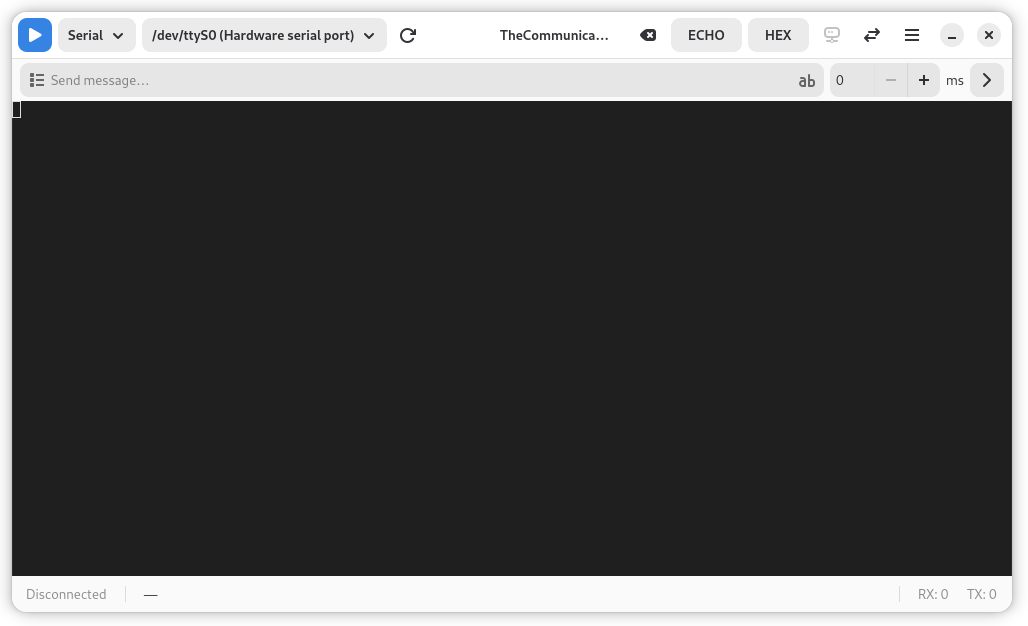
Modern serial and TCP terminal application for Linux, built with GTK4 and libadwaita.
Features
VT100/ANSI Terminal Emulation
Full terminal emulation via VTE4 with ANSI escape sequences, colors, cursor movement, 10,000-line scrollback buffer, and configurable font size (5–24 pt).
Serial & TCP Connections
Connect to serial devices (USB-to-serial adapters, Arduino, STM32) or TCP hosts. Baud rates from 300 to 4,000,000. Auto-detection of /dev/ttyUSB*, /dev/ttyACM*, and virtual ports.
Built-in TCP Server
Bridge serial data to network clients on port 2222. All data forwarded bidirectionally — enables remote access to serial devices from any machine on the network.
Real-time Speed Monitoring
Cairo-rendered RX/TX throughput graphs with three selectable time periods (10 seconds, 1 minute, 5 minutes). Data sampled every 250 ms.
File Transfers
ZMODEM, XMODEM, and YMODEM protocols via lrzsz. Drag-and-drop file sending. Progress popup with speed display and abort support.
Hex Display & Timestamps
Toggle hex dump mode showing offset, hex bytes, and ASCII interpretation. Timestamps in Simple (HH:MM:SS), Extended (ms precision), or Delta (inter-message delay) modes.
Capture to File
Log all received data to a file with optional timestamps. Supports both text and hex output formats.
Multiple Input Formats
Send data as ASCII (with control character tags like <CR>, <LF>, <ESC>), hexadecimal bytes, or decimal byte values. Configurable inter-character delay.
Use Cases
Debugging an Arduino or STM32
Connect the board via USB, select the port and baud rate (typically 115200), enable ECHO and timestamps, then use the send bar for AT commands or debug commands.
Remote Serial Access via TCP Server
Connect to a serial device on one machine, enable the TCP Server, then access it from remote machines using TCP mode — full bidirectional bridge.
Protocol Trace Capture
Enable HEX display and Extended timestamps for millisecond precision, start Capture to File, and log complete protocol exchanges for offline analysis.
Binary Protocol Debugging
Use HEX send mode for raw byte sequences (e.g., Modbus frames), control character tags for mixed text/binary, and inter-character delay for slow UART processors.
Measuring Response Times
Set Delta timestamps to measure exact inter-message delays. Open the Speed Monitor for real-time throughput visualization.
File Transfer to Embedded Devices
Drag and drop files onto the terminal for ZMODEM transfers with error correction and resume capability.
Testing Without Hardware
Create virtual serial port pairs with socat and test communication between two adw-comm instances — a full loopback test environment.
User Manual
Quick Start
- Launch TheCommunicator from the terminal or GNOME Activities
- Select Serial or TCP from the connection type dropdown
- For serial: select a port from the dropdown; for TCP: enter host and port
- Click the Connect button
- Type in the terminal to send data to the device
- Incoming data is displayed with full ANSI/VT100 support
Header Bar
| Element | Description |
|---|---|
| Connect/Disconnect | Toggle the connection |
| Connection type | Switch between Serial and TCP mode |
| Port dropdown (serial) | Select the serial port with device description |
| Refresh | Rescan for available serial ports |
| Host/Port (TCP) | Enter the target host and port number |
| ECHO toggle | Enable local echo |
| HEX toggle | Switch to hex dump display mode |
| TCP Server | Toggle the TCP server bridge |
| Speed Monitor | Toggle the speed graph sidebar |
| Clear | Clear the terminal screen and scrollback buffer |
| Menu | Settings, file transfers, capture, about |
Send Bar
The send bar lets you compose and send messages in multiple formats:
| Element | Description |
|---|---|
| History | Browse and reuse previously sent messages (up to 50 entries, persisted across sessions) |
| Text entry | Type a message and press Enter to send |
| Format selector | Choose input format: ASCII, HEX, or Decimal |
| Delay spinner | Inter-character delay in milliseconds (0–1000 ms) |
| Send button | Send the message |
Input formats:
- ASCII: Plain text with embedded control character tags. Line ending appended automatically.
- HEX: Space or comma-separated hexadecimal byte values (e.g.,
48 65 6C 6C 6F) - Decimal: Space or comma-separated decimal byte values 0–255 (e.g.,
72 101 108 108 111)
Control characters in ASCII mode: <NUL> <SOH> <STX> <ETX> <EOT> <ENQ> <ACK> <BEL> <BS> <TAB> <LF> <CR> <ESC> and more.
Serial Configuration
Baud rates: 300, 1200, 2400, 4800, 9600, 19200, 38400, 57600, 115200 (default), 230400, 460800, 921600, 1000000, 2000000, 4000000.
Line format: Default is 8N1 (8 data bits, no parity, 1 stop bit).
Line endings:
- CR (\r) — Default, most serial terminals and embedded devices
- LF (\n) — Linux/Unix convention
- CR+LF (\r\n) — Windows convention, some modems
Flow control: None, Hardware (RTS/CTS), Software (Xon/Xoff).
TCP Server
Toggle the TCP server with the server icon button. When active, it listens on port 2222 and bridges all serial data bidirectionally to connected network clients.
- Serial → Network: All received serial data forwarded to every TCP client
- Network → Serial: Data from any TCP client forwarded to the serial port
- Status indicator: SRV label shows port and connected client count
- Persistence: Server auto-restarts when you reconnect
Use tools like nc, telnet, or another TheCommunicator instance in TCP mode for remote access.
Speed Monitor
Real-time RX/TX throughput graphs with three time periods:
| Period | Samples | Description |
|---|---|---|
| 10 seconds | 40 | Fine-grained burst analysis |
| 1 minute | 240 | Medium-term throughput |
| 5 minutes | 1200 | Long-term trend monitoring |
Data sampled every 250 ms. Graphs auto-adapt to the current light/dark theme.
File Transfers
Supports three protocols via lrzsz:
| Protocol | Description |
|---|---|
| ZMODEM | Default. Automatic filename, error correction, resume support |
| XMODEM | Simple 128-byte blocks |
| YMODEM | Batch transfers with filenames in protocol |
Files can be sent by drag-and-drop onto the terminal window. A transfer popup shows progress, speed, and an abort button.
Keyboard Shortcuts
| Shortcut | Action |
|---|---|
| Ctrl+L | Clear screen |
| Ctrl+Shift+C | Copy selected text |
| Ctrl+Shift+V | Paste from clipboard |
| Ctrl+Shift+A | Select all |
| Ctrl+Shift+S | Send file |
| Ctrl+Shift+R | Receive file |
| Ctrl+Shift+L | Capture to file |
| Ctrl+Shift+Plus | Increase font size |
| Ctrl+Shift+Minus | Decrease font size |
Port Detection
Automatically detects:
| Pattern | Description |
|---|---|
/dev/ttyUSB* | USB-to-serial adapters (FTDI, CH340, CP2102) |
/dev/ttyACM* | USB CDC ACM devices (Arduino, STM32) |
/dev/ttyS* | Hardware serial ports |
/tmp/vcom* | Virtual serial ports (socat) |
Permissions: If you cannot open a port, add your user to the dialout group: sudo usermod -aG dialout $USER
Troubleshooting
No ports shown: Plug in a USB-serial adapter and click Refresh. Check ls /dev/ttyUSB* /dev/ttyACM*.
Failed to open: Permission denied — add user to dialout group. Device busy — close other serial terminals. Device disconnected — reconnect and refresh.
No data displayed: Verify baud rate matches the remote device. Check line ending setting. Try enabling local echo. Switch to hex display for binary data.
Garbled text: Baud rate mismatch is the most common cause. Try different baud rates. Check data format (8N1).