

TheHexDiff
Version 0.1.0
Binary file comparison tool with aligned hex view, built with C++20, GTK4, and libadwaita.
Features
Aligned Hex Diff via Myers Algorithm
Uses the Myers O(ND) diff algorithm — the same algorithm behind git diff — on raw byte sequences. Insertions and deletions are properly aligned instead of breaking the layout.
Side-by-Side Hex View
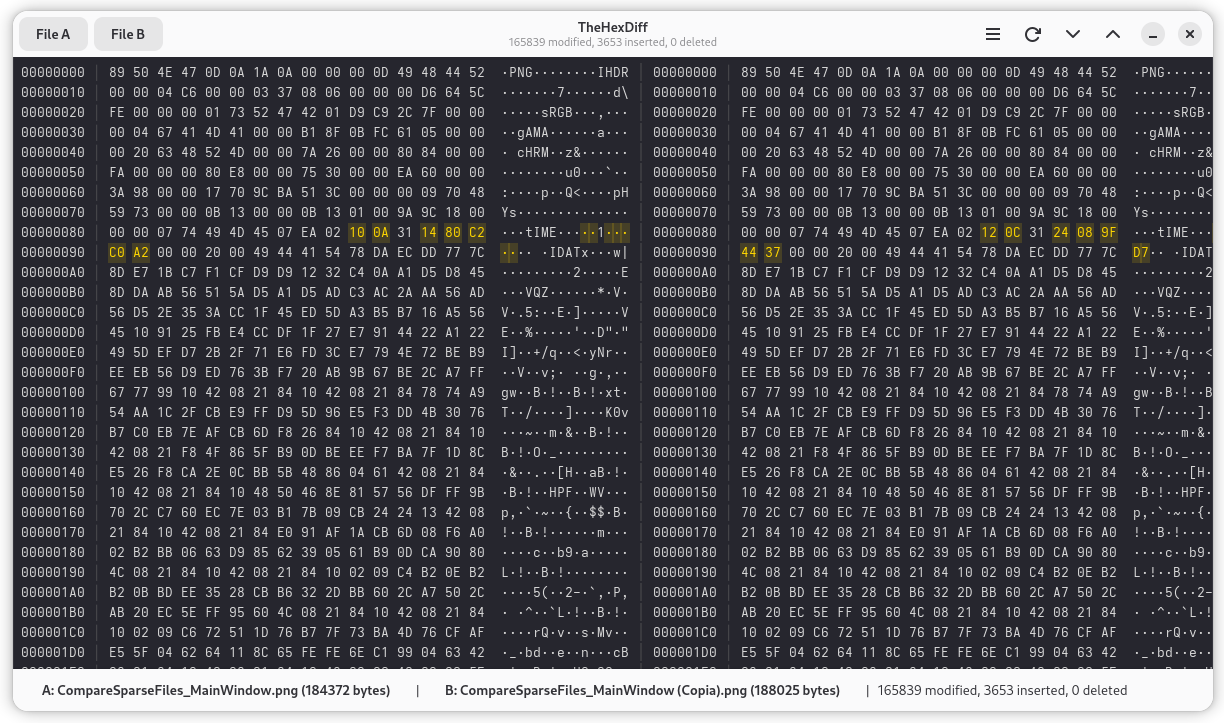
Two panels showing offset, 16 hex bytes per row, and ASCII representation. Gap rows maintain alignment when bytes are inserted or deleted in one file.
Color-Coded Differences
Yellow/amber for modified bytes, red for deleted bytes (File A side), green for inserted bytes (File B side). Matching bytes shown in the default color.
Async Computation
Diff runs on a background thread with a spinner and phase labels (loading files, computing diff, building model). The UI stays responsive even for large files.
Drag and Drop
Drop two files to load both at once, or drop a single file on the left/right half of the window to load it as File A or File B.
Diff Navigation
Jump to the next or previous difference with Ctrl+D / Ctrl+Shift+D, or use the arrow buttons in the header bar. Scroll with keyboard or mouse wheel.
Positional Fallback
When files differ by more than 2000 edit operations, falls back to byte-by-byte positional comparison. The header shows a clear message when this happens.
Keyboard Shortcuts
Ctrl+O / Ctrl+Shift+O to open files, Ctrl+D / Ctrl+Shift+D to navigate diffs, F5 to reload, Home/End/PageUp/PageDown for scrolling.
Use Cases
Comparing Binary File Versions
Load two versions of a binary file to see exactly which bytes changed, were added, or were removed — with proper alignment so surrounding data still lines up.
Analyzing Firmware or ROM Patches
Compare original and patched firmware images. The aligned view shows where patch bytes were inserted or modified without losing context.
Investigating File Format Differences
Compare files in the same format (images, documents, archives) to understand how specific format fields differ at the byte level.
Debugging Serialization Issues
Compare serialized output from two code paths to find where the byte stream diverges. The hex and ASCII columns help identify both binary and text differences.
Comparing Compiled Binaries
Diff two builds of the same program to see what changed in the compiled output. The Myers alignment handles inserted or removed code sections.
User Manual
Quick Start
- Launch TheHexDiff from GNOME Activities or terminal
- Click File A to open the first file
- Click File B to open the second file
- The diff computes automatically — a spinner is shown for large files
- Use Ctrl+D / Ctrl+Shift+D to jump between differences
From the command line:
the-hexdiff original.bin modified.bin
The Main Window
The window is organized into three areas:
Header Bar:
| Element | Description |
|---|---|
| File A button | Opens a file dialog to load the first file |
| File B button | Opens a file dialog to load the second file |
| Title / Subtitle | Shows "TheHexDiff" and diff statistics or status |
| Menu button | Opens the application menu (About dialog) |
| Reload button | Reloads both files and re-runs the diff (same as F5) |
| Next diff button | Scrolls to the next difference (down arrow) |
| Previous diff button | Scrolls to the previous difference (up arrow) |
Content Area: The main area displays the aligned hex view with both files side by side. When no files are loaded or while a diff is computing, a status page with a spinner is shown instead.
Status Bar: Shows File A filename and size, File B filename and size, and the count of modified, inserted, and deleted bytes.
Loading Files
There are three ways to load files:
- File dialog: Click File A or File B in the header bar (or use
Ctrl+O/Ctrl+Shift+O) - Drag and drop: Drop two files to load both at once, or drop a single file on the left half (File A) or right half (File B) of the window
- Command line:
the-hexdiff path/to/file_a path/to/file_b
TheHexDiff works with all file types since it operates on raw bytes.
Press F5 or click the reload button to re-read both files from disk and recompute the diff.
Understanding the Hex View
The view is split into two side-by-side panels separated by a vertical divider. Each panel has three columns:
- Offset — Hex offset of the first byte in the row, relative to the original file
- Hex Bytes — 16 bytes per row, space-separated
- ASCII — Same 16 bytes as printable characters (non-printable bytes shown as
·)
Row types:
| Row Type | File A Panel | File B Panel |
|---|---|---|
| Match | Normal bytes | Normal bytes (identical) |
| Modified | Original bytes (highlighted) | Changed bytes (highlighted) |
| Deleted | Bytes present in A (red) | Gap placeholders (__) |
| Inserted | Gap placeholders (__) | Bytes present in B (green) |
Color coding:
| Color | Meaning |
|---|---|
| Default | Bytes match in both files |
| Yellow / Amber | Byte modified — different value at same logical position |
| Red (File A side) | Byte deleted — present in A but not in B |
| Green (File B side) | Byte inserted — present in B but not in A |
| Dimmed | Gap placeholder — no actual byte at this position |
Offsets on each side advance independently when insertions or deletions cause gaps.
Navigating Differences
Jump to differences:
- Ctrl+D — Jump to the next row containing a difference
- Ctrl+Shift+D — Jump to the previous row containing a difference
You can also use the arrow buttons in the header bar.
Scrolling:
| Action | Keys |
|---|---|
| Scroll one row | Up / Down arrow |
| Scroll one page | Page Up / Page Down |
| Jump to beginning | Home |
| Jump to end | End |
The mouse scroll wheel also works.
Keyboard Shortcuts
| Shortcut | Action |
|---|---|
Ctrl+O | Open File A |
Ctrl+Shift+O | Open File B |
Ctrl+D | Jump to next difference |
Ctrl+Shift+D | Jump to previous difference |
F5 | Reload both files and re-diff |
Up / Down | Scroll one row |
Page Up / Page Down | Scroll one page |
Home / End | Jump to start / end |
File Size Limits
TheHexDiff loads files entirely into memory for comparison.
| File Size | Behavior |
|---|---|
| Up to 64 MB | Normal operation |
| 64 MB to 256 MB | Accepted but may use significant memory |
| Over 256 MB | Refused — file is too large |
For two 100 MB files, expect roughly 300–400 MB of memory usage during diff computation.
Understanding the Diff Algorithm
Myers Algorithm: TheHexDiff uses the Myers O(ND) diff algorithm, the same foundational algorithm used by git diff and GNU diff. It finds the shortest edit script — the minimum number of insertions and deletions to transform File A into File B.
Edit Distance Bound: The algorithm is bounded to a maximum edit distance of 2000. If files differ by more than this, TheHexDiff falls back to positional comparison.
Positional Fallback: Bytes at the same offset are compared directly — matching bytes are equal, differing bytes are modified, extra bytes in the longer file are inserted or deleted. The header shows "Positional comparison (files too different for alignment)" when active.
Coalescing: Adjacent Delete+Insert pairs at the same logical position are displayed as "Modified" operations, since a byte changing value is more intuitive than showing separate deletion and insertion.
Troubleshooting
The spinner shows but nothing happens: For very large files (near the 256 MB limit), loading and comparison can take a long time. Wait for the computation to finish or load smaller files.
"Positional comparison" message: The files differ by more than 2000 edit operations. The alignment algorithm fell back to byte-by-byte comparison. This is normal for files that are substantially different.
No differences shown: Both files are identical. Check the status bar — it should show "0 modified, 0 inserted, 0 deleted."
File refused (too large): Files over 256 MB are refused to prevent excessive memory usage. Consider using cmp or xxd with diff for very large files.