


TheWatchover
Version 0.2.0
Real-time file monitoring application with visual diff display for the GNOME desktop.
Features
Real-time File Monitoring
Uses Gio::FileMonitor with recursive directory watching (up to 50 levels deep). Detects file creation, modification, and deletion instantly.
Baseline-based Diff
LCS diff algorithm compares current files against a snapshot taken when monitoring started. Changes accumulate, giving a complete picture of all modifications.
Syntax Highlighting
GtkSourceView 5 supports 300+ languages with automatic detection. Bracket matching, current line highlighting, and Adwaita theme integration.
Three-Pane Layout
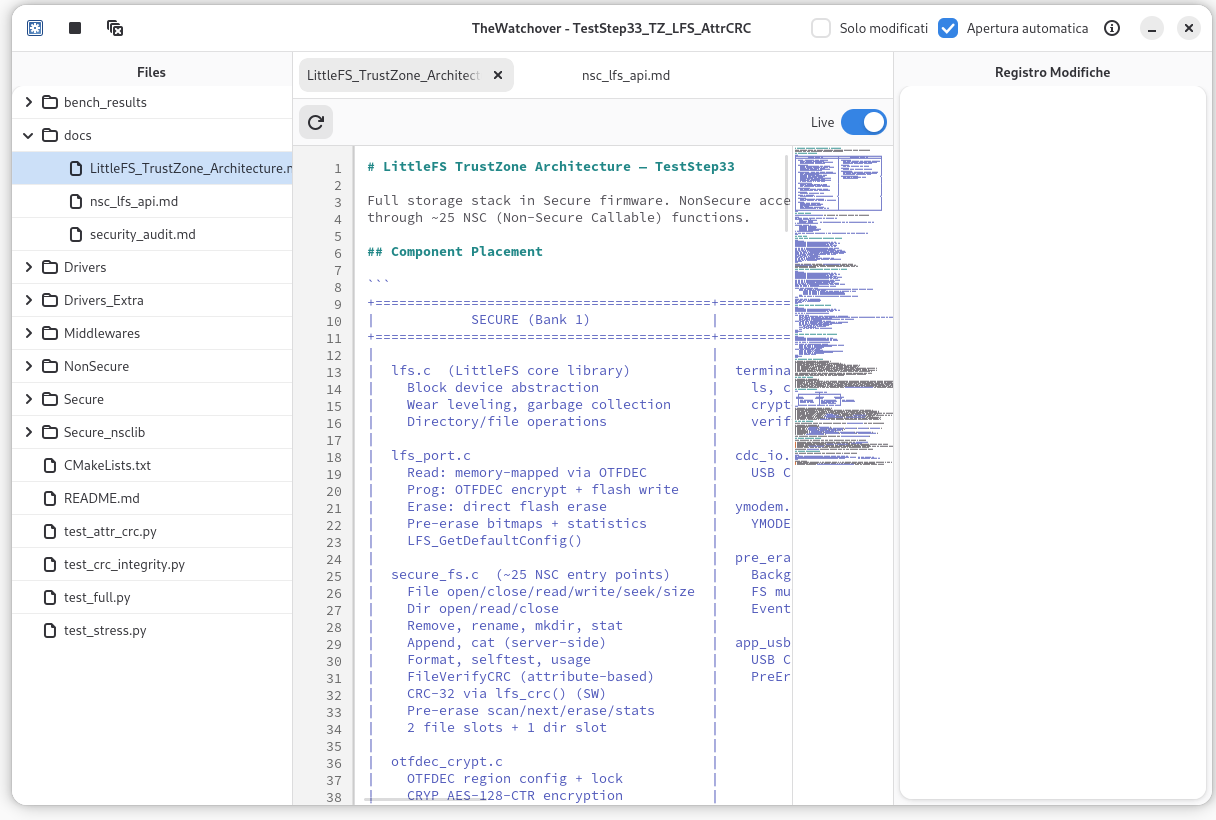
File tree (left), tabbed file viewer with minimap (center), and chronological change log (right). All panes are resizable.
LZ4 Compressed Baselines
Baselines compressed to 30–50% of original size using LZ4. On-demand decompression for efficient memory usage.
Pattern Presets
Save and load include/exclude pattern sets. Shell glob patterns for includes, fnmatch patterns for excludes. Presets stored in ~/.config/thewatchover/presets/.
Atomic Save Handling
Transparently handles editor atomic saves (DELETE + CREATE sequences). A 2-second pending buffer preserves baselines across atomic operations.
Multi-language UI
Available in English, Italian, French, and German.
Use Cases
Watching Code During AI-Assisted Development
Monitor your codebase while an AI assistant (Claude Code, Copilot, Cursor) makes changes. See every modification as it happens with Auto-open enabled.
Monitoring Configuration Changes
Watch /etc/ or config directories to track which configuration files are modified by a process. Every change is logged with timestamps.
Pre-Commit Change Review
Monitor a project during a coding session. Use Modified only filter to review all accumulated changes before committing.
Build Output Tracking
Watch a build output directory to see which files are generated or updated. Exclude intermediate files (*.o, *.d) with patterns.
Log File Monitoring
Watch log files grow in real-time with Live mode. All new lines appear as additions. Reset baseline to start tracking from the current point.
Investigating Unexpected Modifications
Monitor a directory with include pattern `*` to catch any file creation, modification, or deletion. Deleted files remain visible (marked red).
User Manual
Getting Started
Launch TheWatchover. A configuration dialog appears where you choose a folder to watch and set file patterns. Click Start Watching to begin monitoring.
./thewatchover              # Normal launch (shows config dialog)
./thewatchover --auto-start # Skip dialog, use saved config
Window Layout
+---------------------------------------------------------------+
|  [Configure] [Stop] [Clear]       [Modified only] [Auto-open] |
+----------+----------------------------+-----------------------+
|          |                            |                       |
|  File    |  File Viewer               |  Change Log           |
|  Tree    |  (tabbed, with minimap)    |  (newest first)       |
|          |                            |                       |
+----------+----------------------------+-----------------------+
| Buffers: 1.2 MB (effective 340.5 KB)                          |
+---------------------------------------------------------------+
| Button | Action |
|---|---|
| Configure | Open configuration dialog |
| Stop | Stop watching and return to placeholder |
| Clear | Clear all change highlights |
| Modified only | Show only changed files |
| Auto-open | Automatically open tabs when files change |
Configuration
Folder selection: Click Browse to choose the root directory. Enable recursive watching for subdirectories (up to 50 levels).
Include patterns (shell glob, one per line):
*.cpp
*.h
*.py
*.md
*.json
Exclude patterns (fnmatch, checked against full relative path — take priority over includes):
build/*
build-*/*
.git/*
*.o
*.a
Temporary files (vim .swp, emacs #*#, .tmp, .bak) are always excluded automatically. Settings saved to ~/.config/thewatchover/config.ini.
File Tree
| Color | State | Meaning |
|---|---|---|
| Green | Created | A new file appeared |
| Orange | Modified | Content changed since baseline |
| Red | Deleted | File removed from disk (still visible) |
| None | Unchanged | No changes detected |
- Directories expand/collapse
- Deleted files remain visible so you can see what was removed
- If a deleted file is recreated, state changes to Created
- Double-click to open in the viewer
- Modified only filter preserves directory structure
File Viewer
Tabbed viewer with GtkSourceView, syntax highlighting for 300+ languages, and diff visualization:
- Added lines: pale green background
- Removed lines: pale red background
- Dual-column line numbers: original (left) and current (right) line numbers
- Minimap sidebar shows diff colors for quick navigation
- Reload button: reset baseline to current content
- Live switch: auto-refresh when file changes on disk
- Double-click tab header: open file in default application
- Tabs can be reordered by dragging
Diff Engine & Baselines
TheWatchover uses a baseline-based diff model:
- When monitoring starts, every file is read and stored in a compressed baseline cache
- When a file changes, it is compared against the cached baseline — changes accumulate
- The baseline is NOT updated automatically — gives a complete picture of all modifications since start
- Click Reload in a viewer tab to reset the baseline for that file
- When monitoring stops, all baselines are cleared
Memory optimization: Baselines are LZ4-compressed (30–50% of original). Status bar shows logical vs effective memory usage.
Atomic save handling: Editors that save via DELETE+CREATE (atomic save) are handled transparently with a 2-second pending buffer.
Change Log
The right pane lists changes chronologically (newest first):
- State icon: Green (created), Orange (modified), Red (deleted), Blue (reloaded)
- Filename and timestamp
- Parent directory
- For modified files: line range and count (e.g., "Lines 5-12 (+3/-1)")
- Double-click an entry to open the file in the viewer
Troubleshooting
No changes detected: Check include/exclude patterns. Ensure recursive watching is enabled for subdirectories. Verify inotify support.
Diff shows no changes: The baseline may have been reset by a Reload. Check the change log for a "Reloaded" entry.
High memory usage: Check the status bar for effective memory. Exclude large binary files (*.bin, *.dat, *.png). Click Stop to free all baseline memory.